
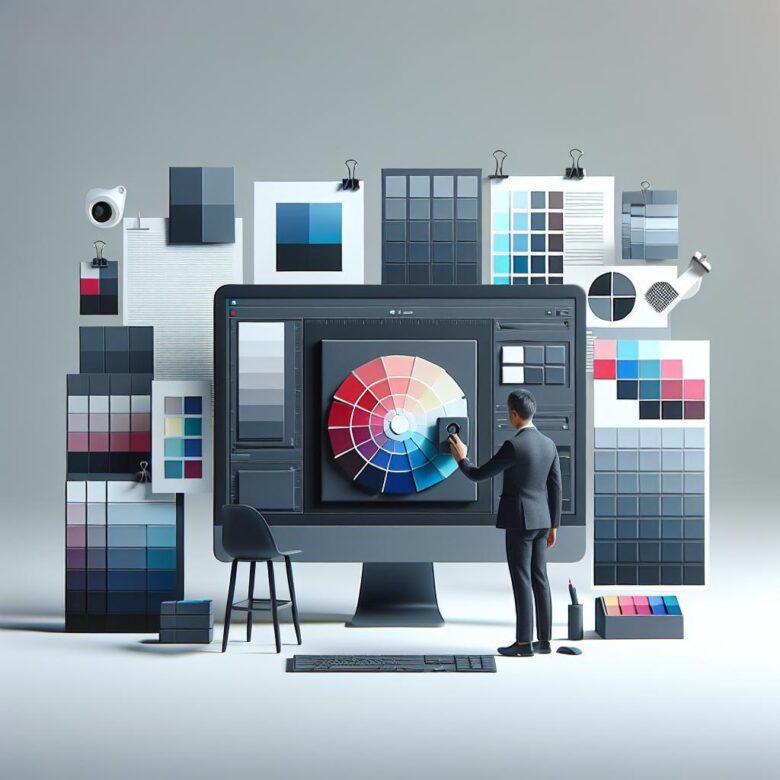
Your prints are only as accurate as your monitor-and most screens lie. If skin tones shift, shadows plug up, or branded colors miss the mark, you are not dealing with a printer problem first. You are looking at a display that has never been calibrated correctly.
After helping photographers, designers, and print buyers fix costly color mismatches, I have seen the same pattern: wasted ink, reprint fees, lost time, and client trust damaged by avoidable screen-to-print errors.
Below, I break down the exact calibration workflow to build a reliable screen-to-print match-including ideal brightness, white point, gamma, ambient light control, and hardware tools that actually matter. Follow it, and you will make print decisions with confidence instead of guesswork.
Step-by-Step Monitor Calibration for Accurate Prints: Gamma, White Point, Brightness, and ICC Profiles Explained
Most print mismatches start with a monitor that is 80-120 cd/m² too bright, causing shadows to print blocked and highlights to look dull on paper. For print work, calibrate with a hardware colorimeter such as the X-Rite i1Display Pro or Datacolor SpyderX, not by eye.
- Gamma: Set 2.2 for nearly all modern print workflows; it aligns display tone response with current operating systems and Adobe applications, avoiding midtone compression that skews skin tones and neutral gradients.
- White Point: Start at D65 for general editing, but move to D50 if you are soft-proofing under standardized print lighting; the goal is visual agreement between display white and paper white, not a theoretical target.
- Brightness and ICC Profiles: Aim for 80-120 cd/m² in a dim studio, closer to 120-140 cd/m² in brighter rooms; save and activate the generated display ICC profile so color-managed apps like Photoshop can translate image data correctly to your calibrated screen.
Field Note: I corrected a fine-art client’s repeat magenta cast simply by recalibrating their wide-gamut display in DisplayCAL to 100 cd/m² and D50, which finally matched the viewing booth they used for proof approval.
Why Your Prints Don’t Match Your Screen: Expert Fixes for Color Casts, Dark Shadows, and Paper-Specific Profiles
If your prints come out too dark, the monitor is usually set 2-3 stops brighter than the print viewing environment, not “slightly off.” The second common failure is editing in a wide-gamut display profile without soft-proofing the actual paper/printer ICC, which pushes neutrals into magenta, green, or muddy shadow bias.
- Dark prints: Calibrate display luminance to 80-120 cd/m², gamma 2.2, and D65 or D50 based on your viewing booth; then verify under controlled light rather than room lighting.
- Color casts: Use printer/paper-specific ICC profiles and soft-proof in Adobe Photoshop or Lightroom Classic with Relative Colorimetric or Perceptual rendering, then enable paper white simulation to preview warmth and contrast loss.
- Paper mismatch: Gloss, baryta, and matte papers have different black density, optical brighteners, and gamut limits; profile each combination with a spectrophotometer such as the X-Rite i1Studio instead of reusing one generic print preset.
Field Note: I corrected a recurring cyan cast on a client’s Epson baryta workflow only after disabling the printer driver’s hidden color adjustment, applying the exact media ICC, and dropping monitor brightness from 160 to 95 cd/m².
Hardware vs. Software Calibration: Pro Tips for Building a Reliable Screen-to-Print Color Workflow
Most screen-to-print mismatches are not printer failures-they start with displays running 200-300 nits, blue-biased white points, and generic ICC profiles. If your monitor is calibrated only in software on the GPU LUT, you can improve appearance, but you cannot correct panel nonlinearity or uneven tone response as reliably as true hardware calibration.
| Method | What It Changes | Best Use |
|---|---|---|
| Hardware calibration | Writes calibration directly to the monitor’s internal LUT; preserves GPU output and usually supports tighter grayscale tracking | Print proofing, wide-gamut displays, repeatable studio workflows using tools like BenQ Palette Master Ultimate or EIZO ColorNavigator |
| Software calibration | Loads corrections into the graphics card LUT and assigns an ICC display profile at OS level | Budget setups, laptops, or displays without onboard LUT access, typically measured with DisplayCAL plus a colorimeter |
| Hybrid workflow | Uses hardware calibration where available, then validates with printer/paper ICC soft proofing | Most reliable route for matching 80-120 nit print-viewing conditions to screen preview |
Pro Tip: I corrected a persistent warm-shadow cast on a photographer’s baryta prints only after replacing GPU-only calibration with the monitor’s internal 16-bit LUT and rechecking soft proof luminance at 100 nits under D50 lighting.
Q&A
- What monitor settings matter most if I want my prints to match what I see on screen?
The most important settings are brightness, white point, gamma, and color profile accuracy. For print-focused work, a monitor that is too bright is the most common problem; it makes images look better on screen than they will on paper, leading to dark prints. A practical target is often 80-120 cd/m² brightness, D65 or D50 white point depending on your workflow, and gamma 2.2. Use a hardware calibrator whenever possible, because visual-only adjustment is not precise enough for reliable print matching.
- Why do my prints still look different even after calibrating the monitor?
Monitor calibration solves only one part of the color workflow. Prints can still differ because of printer profiling, paper type, ink limitations, ambient lighting, and soft-proof settings. Every paper has its own white tone and surface behavior, and printers cannot reproduce the full range of colors and brightness visible on a backlit display. To improve consistency, use the correct ICC profile for your printer and paper, evaluate prints under controlled lighting, and enable soft proofing in your editing software before printing.
- How often should I calibrate my monitor for accurate print work?
For professional or color-critical printing, recalibrate about every 2 to 4 weeks. Monitors drift over time as brightness and color response gradually change, especially during their first months of use. If you print less frequently, monthly calibration is usually sufficient. It is also wise to recalibrate after major changes such as a new workspace lighting setup, graphics settings adjustment, or switching to a different monitor mode.
Key Takeaways & Next Steps
Accurate printing is less about chasing a “perfect” screen and more about building a controlled, repeatable workflow. The biggest mistake I still see is calibrating once, then ignoring ambient light, paper profiles, and monthly drift.
Pro Tip: If you only implement one thing from this guide, make it a fixed recalibration schedule with the same room lighting every time. That single habit prevents more print mismatches than buying a better monitor.
Before you close this tab, place a neutral gray reference print next to your display, lower any auto-brightness setting, and create a calendar reminder to recalibrate in 30 days. Consistency is what makes your edits trustworthy when ink hits paper.

Dr. Julian Mond is a visual storyteller and researcher dedicated to the intersection of light, history, and human emotion. With a doctorate in Visual Arts, he combines academic precision with a cinematic eye to transform fleeting moments into timeless narratives. Through Mond Photos, he explores the world as a living gallery.